

Self-publishing used to be whispered about in literary circles, often with a raised eyebrow and the suggestion that “real” books came from a traditional publisher. Thankfully, those days are over. Today independent authors are producing works every bit as polished, respected and successful as those from the big publishing houses. Some are even outperforming them; critically and commercially.
At Wilsonian Press we believe in the power of the independent voice. We also believe that a beautiful book shouldn’t be the preserve of those with a designer on speed dial. That’s why we’ve created a range of professional, fully editable Canva book layout templates so you can focus on writing while we handle the layout design.
Who These Templates Are For
Our Canva book templates are designed for independent authors who want to self-publish in both print and digital formats. They are ideal if you:
- Want your book to look like it belongs in the window of a top bookshop
- Have no interest in mastering complicated design software
- Need a layout that is industry-standard and distribution-ready
These templates can be used for books destined for:
- Amazon Kindle Direct Publishing (KDP)
- IngramSpark
- Kobo Writing Life
- Apple Books
- Lulu
- Barnes & Noble Press
- Google Play Books
- Draft2Digital (including Smashwords distribution)
- Blurb
- BookBaby
- Scribd
- And other global distribution platforms
Whether you’re releasing a novel, memoir, non-fiction guide, poetry collection or illustrated work, you’ll find a Wilsonian Press template to suit your project.
The New Era of Self-Publishing
Let’s be clear — self-publishing is no longer the poor cousin of the literary world. It is a vibrant, respected route chosen by authors who value creative control, faster publication and higher royalty potential. From debut writers to established names, many are embracing this model with great success.
Wilsonian Press is proud to be part of this movement. Our templates give you the professional edge that allows your work to stand shoulder to shoulder with the very best. No cutting corners, no “it’ll do” layouts — just timeless design that complements your words.
Why Canva is the Secret Ingredient
If book design software were a party, Canva would be the friendly guest everyone gathers around: approachable, versatile and ready with something useful to say. With its intuitive drag-and-drop interface, Canva makes it simple to customise every element of your book layout without the need for a design degree.
You can access Canva from your browser or mobile app, so you’re free to work from anywhere. You can change fonts, colours, images and page layouts in just a few clicks. And because it’s cloud-based, your work is always saved and ready for you to pick up where you left off.
Tip: If you’re new to Canva, then checking out Canva’s official tutorials is a great place to start.
What to Expect When You Open Your Template

When you purchase a Wilsonian Press template you’ll receive a PDF similar to the image above, containing a unique link to open your design in directly in Canva. From there, you can:
- Replace all placeholder images or clipping frames with your own photos, illustrations or graphics
- Change every piece of placeholder text, including:
- Title page
- Dedication
- Publisher and copyright information
- Captions
- Headings and subheadings
- Index
- Glossary
- Adjust colours, fonts and spacing to match your vision
Our templates are structured with the three main sections of a professional book:
Front Matter

Everything that appears before the main text, such as:
- Title page
- Copyright page
- Dedication
- Foreword
- Preface
- Table of contents
- List of illustrations or tables
Main Body

The central content of your book — the chapters or sections containing your actual work.
Back Matter
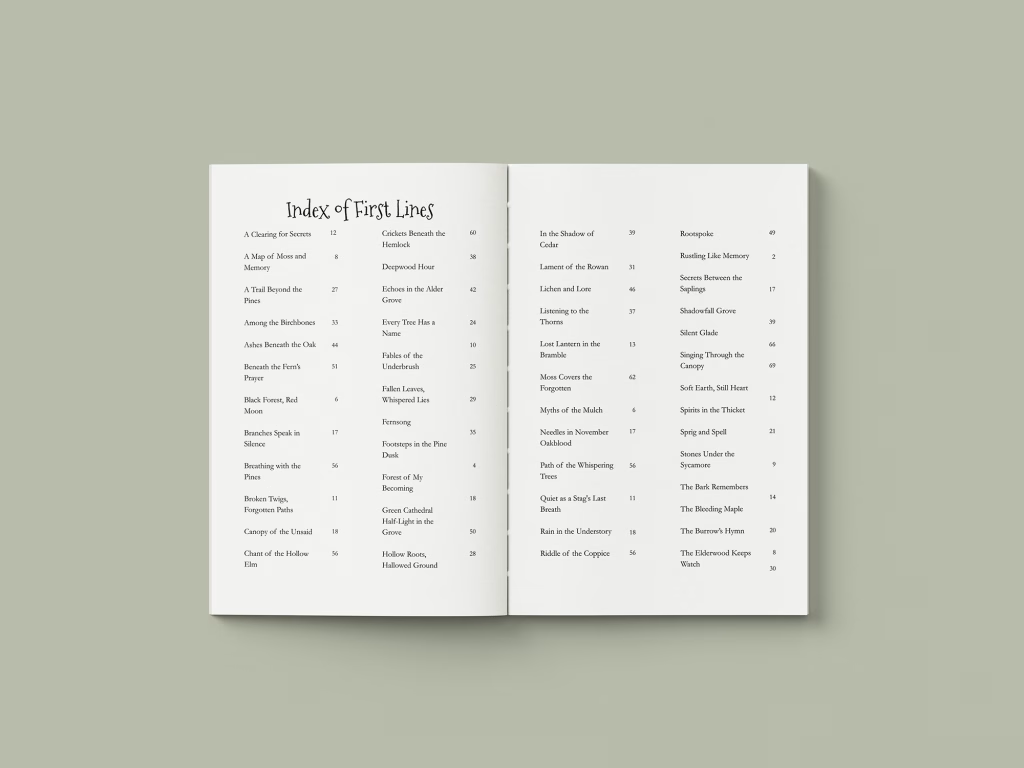
The closing pages, which may include:
- Index
- Glossary
- Acknowledgements
- About the author
- Further reading or resources
Not every template will include every possible element, each is carefully designed to suit its intended genre and audience.
Step-by-Step Guide to Using Your Wilsonian Press Canva Template
You’ve got your template, a hot drink, and a manuscript you’re proud of. Now let’s get your words dressed for the literary ball.
1: Open the PDF and Click Your Canva Link
When you purchased your template you received a PDF containing a unique Canva link. Simply click this link and Canva will open in your browser or app.
If you don’t already have a free Canva account, you’ll be prompted to create one — it only takes a minute.
Tip: We recommend working on a desktop or laptop for the most comfortable editing experience, although Canva’s mobile app is handy for quick tweaks.
2: Make a Copy of the Template
Before you start editing, click the ‘Use Template’ or ‘Make a Copy’ button in Canva. This ensures you’re working on your own version and not altering the original. Your personal copy will appear in your Canva dashboard, ready for you to work on at any time.
3: Replace Placeholder Images
Your template will contain images or image frames (also called clipping frames) as examples. To add your own:
- Click on the placeholder image or frame
- Upload your image using the ‘Uploads’ tab on the left-hand toolbar
- Drag your image into the frame — Canva will automatically crop it to fit
- Adjust by double-clicking and repositioning if needed
You can use photos, illustrations, diagrams or any other visual elements that suit your book.
4: Replace All Placeholder Text
Your template includes placeholder text throughout. This is simply there to show you where your words will go. Replace it with your own:
- Front matter: Title page, dedication, copyright, foreword, preface, table of contents
- Main body: Chapter headings, subheadings, captions, pull quotes
- Back matter: Index, glossary, acknowledgements, author bio
To change the text, click inside the text box, delete the placeholder and type (or paste) your content. You can adjust font style, size and colour from the toolbar above the page.
5: Customise the Design
This is where the magic happens. You can:
- Change fonts to suit your book’s tone
- Adjust colours for headings, borders or backgrounds
- Move elements around to better fit your content
- Add or remove pages as needed
Canva’s drag-and-drop system means there’s no complicated menu-hunting. You can see changes in real time, which makes experimenting fun rather than frightening.
6: Check Your Page Numbers
If your template contains automatic page numbers, check that they flow correctly after you add or remove pages.
If you need to add them manually, simply insert a text box at the bottom of each page and type the number.
7: Proofread and Preview
Before exporting, proofread every page for typos, formatting slips or misplaced images. Canva’s ‘Presentation Mode’ (the play icon in the top right) is useful for seeing your book at full size.
8: Download Your Final Book File
When you’re happy with your design:
- If printing through Amazon KDP, IngramSpark or similar, check their file requirements and adjust settings accordingly
- Click ‘Share’ in the top right corner
- Select ‘Download’
- Choose PDF Print for print-ready files, or PDF Standard for digital-only books
9: Upload to Your Chosen Platform
Follow your self-publishing platform’s upload process. Most will guide you step-by-step and flag any formatting issues. Once approved, your book will be available for the world to read.